Save a Claude chat as a PDF, the whole thing or one answer
Claude has no save as PDF button, and printing the page drags the whole app along. The PrintFriendly extension adds one to the chat, for the full conversation or just one answer.
Some Claude chats are worth keeping: a plan you worked out together, notes for an exam, a long answer you'll want to hand to someone. But Claude has no button to save a chat as a PDF, and pressing Ctrl+P (Cmd+P on a Mac) prints the sidebar, the message box and every little button along with it. The PrintFriendly extension adds a Save as PDF button to Claude, so you can save a Claude chat as a PDF, or print it, with just the conversation in it.
Turn on the buttons in Claude
The buttons in Claude are off until you ask for them, so nothing changes on Claude the day you install. There are two ways to switch them on.
From the chat. Open a Claude conversation, click the PrintFriendly button in your browser's toolbar and choose PrintFriendly View. A small panel shows up in the corner offering to Add Save as PDF to Claude. Click Add the button. If your browser asks whether PrintFriendly can run on claude.ai, allow it, and the buttons are there from then on.
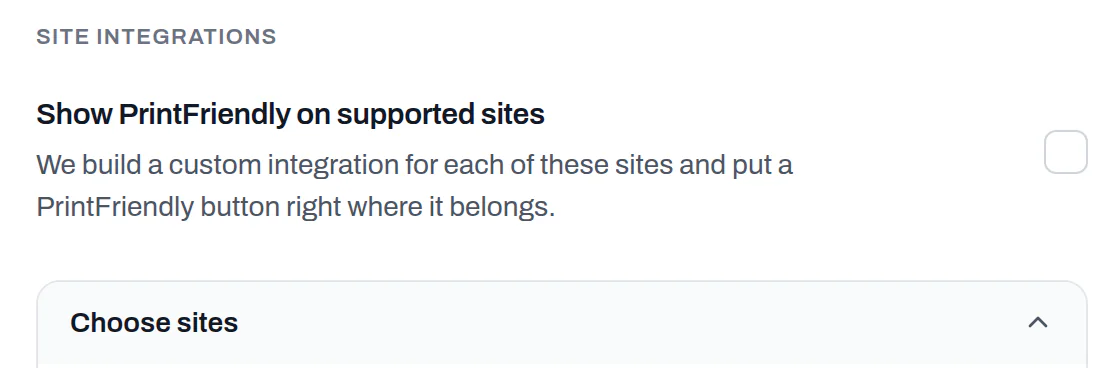
From Settings. In PrintFriendly View, click Settings, then Where PrintFriendly Appears. Under Choose sites, turn on Claude, then click Save. (The Show PrintFriendly on supported sites switch above it turns on every site that has buttons at once.)
Save the whole conversation
Open the chat and look at the top, beside Claude's Share button. That's where Save as PDF sits. In a narrow window it shrinks to just the PrintFriendly icon.
Click it and the whole conversation opens in PrintFriendly View, laid out like a transcript instead of an app:
- Your prompts sit in grey bubbles to one side, and Claude's answers run full width. There are no "You said" labels; the layout already shows who's talking.
- Code blocks, tables and lists keep their shape, and equations read as equations.
- Links in an answer stay links.
- Web search answers keep their sources, as a short line of the sites Claude cited under the answer.
- Images you uploaded show up in the message where you sent them.
- Long chats come through whole, from your first prompt to the last answer, not just the part on your screen.
- The answer you picked is the one that prints. If you regenerated a reply and settled on a different version, you get the version you're looking at.
What stays out is everything that isn't the conversation: the sidebar with your other chats, the message box, the buttons under each reply, and Claude's thinking and tool steps.
From there, click PDF to save it as a file, or Print to send it to your printer.
Nothing has to go public first. There's no share link to create and no pasting the chat into some other website: it works on the chat you already have open.
No buttons in the chat? The toolbar does the same job. Click the PrintFriendly button in your toolbar and choose PrintFriendly View, and you get the same transcript.
Save just one answer
Sometimes one reply is the whole point: a recipe, a cover letter draft, a bit of code. Under each finished answer, next to Claude's own buttons, there's a small PrintFriendly icon. Click it and PrintFriendly View opens with that answer and the question you asked right before it, so the PDF still makes sense on its own. It's the one to use when you want to send someone a single result without the whole back-and-forth that led to it.
The icon only shows on Claude's answers, not on your prompts, and it waits until an answer has finished writing.
Tidy it before you save
PrintFriendly View is editable, which is handy when a chat wandered.
Delete is already on when it opens. Hover over something you don't want and click it: one click removes one block, like a paragraph, an image or a list item. A tangent that ran over a couple of replies takes a few clicks, and so does the opening stretch where you were still explaining what you wanted. If you remove too much, Undo brings it back.
To make it easier to read on paper, open Style and turn up Text size. Then click PDF or Print.
The rest of what PrintFriendly View can do is in the Help Center's Browser Extensions guide.
Other ways, and when they fit
- Ctrl+P / Cmd+P works in any browser with nothing to install, but it prints the page as it looks, so you get the sidebar, the buttons and awkward page breaks.
- Claude's Copy button under an answer is quick when you want one reply in a document you're already writing. Formatting doesn't always survive the paste.
- Downloading an Artifact from its panel gives you the Artifact itself, not the conversation around it.
- Claude's data export in its settings is for your whole account. It arrives as an archive of data files, which makes a good backup but not something you'd read or print.
If you have a DeepSeek chat to keep too, the same idea works there: see how to save a DeepSeek chat as a PDF.
Where it works
The Claude buttons are in the PrintFriendly extension for Chrome, Edge, Firefox and Safari.
Frequently Asked Questions
How do I save an entire Claude chat as a PDF?
With the PrintFriendly extension installed and Claude switched on, click Save as PDF at the top of the chat, next to Share. The whole conversation opens as a clean transcript in PrintFriendly View. Click PDF to save it.
Can I save just one Claude answer as a PDF?
Yes. Under each finished answer there's a small PrintFriendly icon next to Claude's own buttons. It gives you that answer and the question you asked before it, nothing else.
Can you print a chat from Claude?
Claude doesn't have a print button of its own, and Ctrl+P prints the sidebar and buttons along with the chat. Open the chat in PrintFriendly View instead and click Print for just the conversation on paper.
Can I export a Claude chat as a PDF without making it public?
Yes. PrintFriendly works on the chat you have open, so there's no share link to create and nothing to paste into another website.