The fastest way to print a web page without the ads
Put a PrintFriendly button in your browser and get the clean version of any page from your toolbar. Here's how to get it and use it.
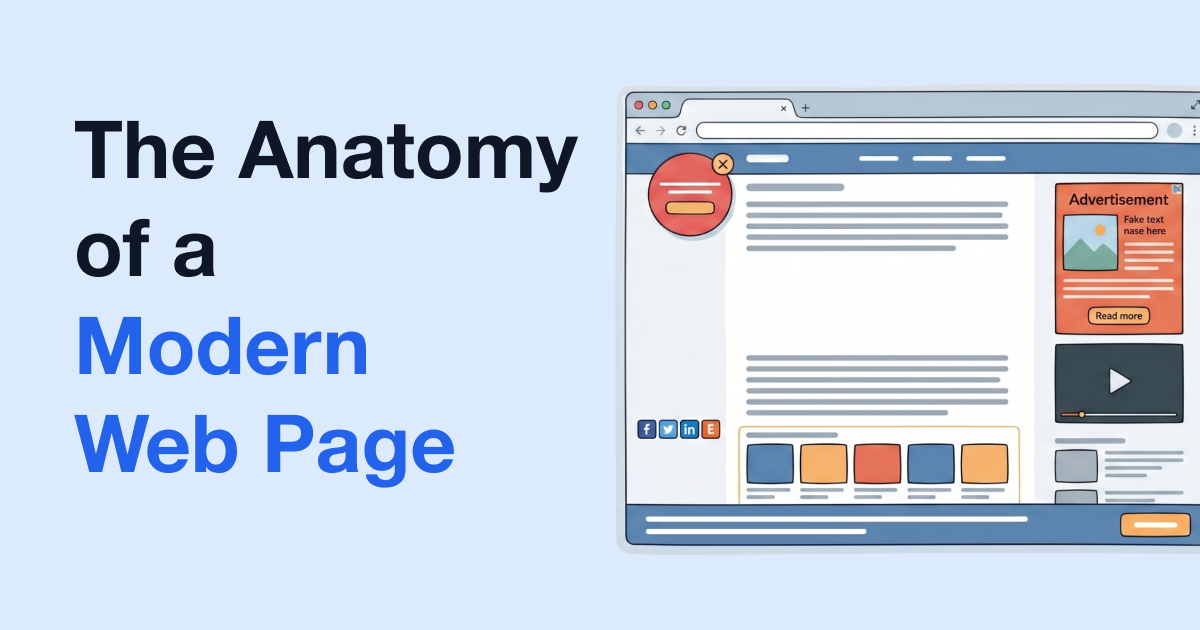
You hit print on an article and get the ads, the menus, a cookie banner and six pages where two would do. The PrintFriendly extension puts a button in your browser's toolbar that opens the clean version of whatever you're reading, on any site. No copying the link over to printfriendly.com first.
Get it on your browser
- Chrome: the PrintFriendly extension for Chrome. The same one works in Brave, Opera, Vivaldi and Arc.
- Edge: PrintFriendly for Edge.
- Firefox: PrintFriendly for Firefox.
- Safari: PrintFriendly for Safari comes as an app from the App Store, for Mac, iPad and iPhone. Once it's installed, switch it on in Safari's settings under Extensions.
Then pin it. If you don't see the button after installing, it's in the puzzle-piece menu next to the address bar. Open that menu, find PrintFriendly and pin it, and the button stays in your toolbar where you can reach it.
Print, PDF or tidy up first
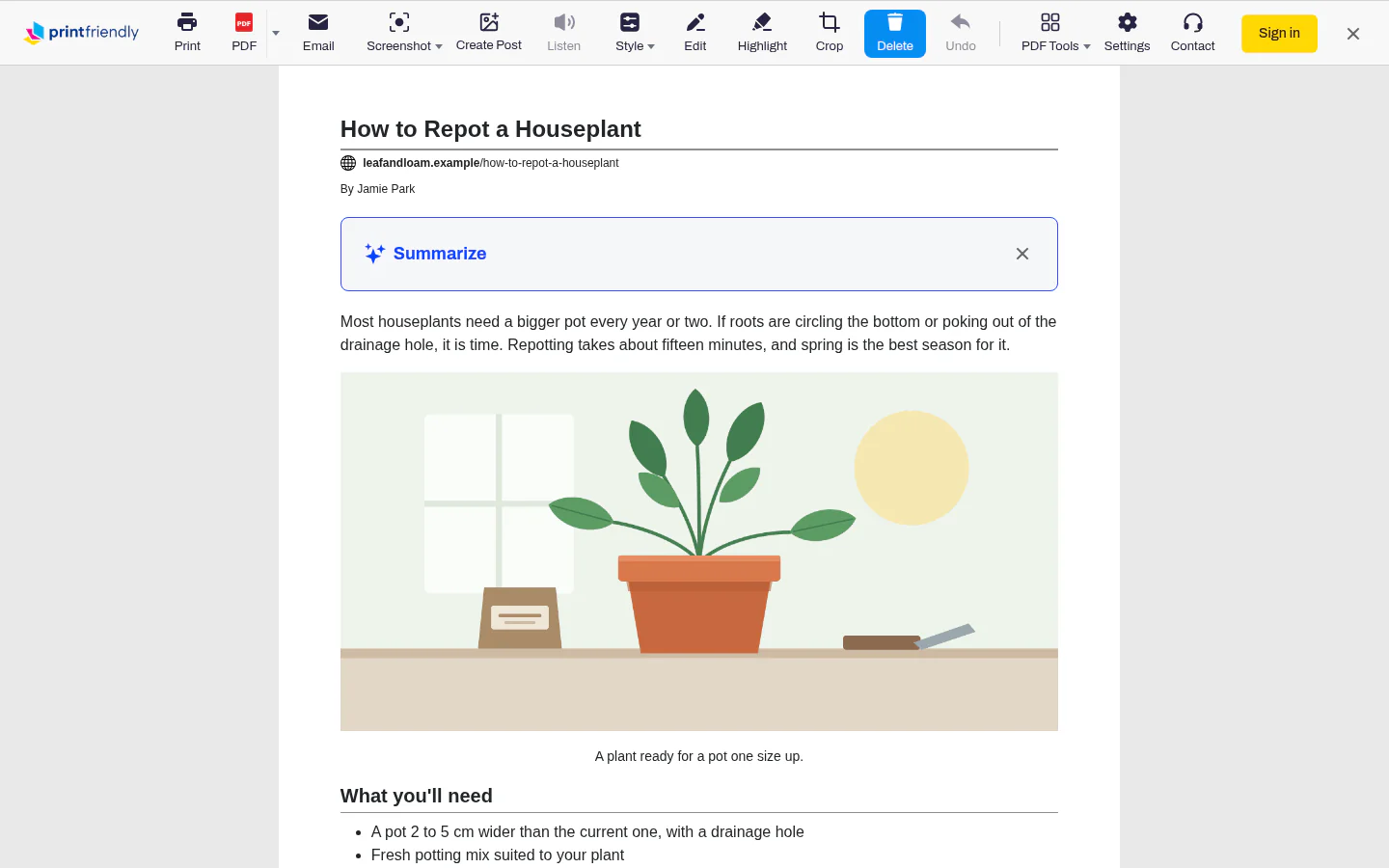
- On the page you want, click the PrintFriendly button and choose PrintFriendly View. A clean copy opens over the page, with the ads, menus and sidebars already gone.
- Anything else you don't want, click it. Delete is already on, so hovering shows Click to delete, and one click removes that paragraph, picture or box. Undo brings back anything you didn't mean to remove.
- Click Print to send it to your printer, or PDF to save it as a file.
On a computer where you can't install anything? Paste the page's address into the box on our home page and press Go for the same clean page.
Everything else the extension does, and what to do if the button won't show up, is on the Help Center's Browser Extensions page.