How to print to PDF online, free
Need a PDF and your computer won't make one? Drop the file on our PDF Converter, or use the built-in Save as PDF, and here's what to try when Print to PDF breaks.
A form, a teacher or someone at work wants a PDF, and what you've got is a Word doc, a spreadsheet, a slide deck or a photo. Maybe Microsoft Print to PDF isn't in your printer list, or you're on a library computer that won't let you install anything, or you're on your phone. You can print to PDF online instead: drop the file on our PDF Converter and download a PDF.
What "print to PDF" actually means
A PDF printer is a pretend printer. You "print" to it the way you'd print to the one down the hall, but instead of putting ink on paper it writes a PDF file. Windows calls its virtual PDF printer Microsoft Print to PDF. Macs, Chrome and Edge call it Save as PDF. It's not the same thing as printing a PDF onto paper, and it's not the same as getting a PDF ready for a print shop with bleed and trim marks. It's just turning something into a PDF.
An online PDF printer does the same job without the print dialog. You hand it the file and get a PDF back.
How to print a file to PDF online
- Open PDF Converter.
- Drop your file on the box that says Drag & Drop or Choose File to Upload, or click it and pick the file.
- The file opens in our viewer. Scroll through and check it looks right. If you need to, you can add text or a signature here first.
- Click the yellow Download button at the top and choose PDF.
Got it the other way round, a PDF you need as a Word file? Drop the PDF on the same box. The Download menu then puts Word at the top, with the other formats under Convert & download.
Converting is free for anyone. Downloading the PDF takes a free account. The Share button next to Download makes a link you can copy instead, which also needs the account and stops working after 24 hours.
What you can turn into a PDF
The converter takes most of what people need a PDF of:
- Office files: Word, Excel and PowerPoint, old and new formats (.doc and .docx, .xls and .xlsx, .ppt and .pptx).
- Photos and images: JPG, PNG, GIF, BMP, WebP, TIFF, and HEIC, the format iPhones save photos in.
- Ebooks: EPUB, MOBI and AZW3, as long as they're DRM-free.
If you already know your format, the dedicated pages work the same way: Word to PDF, JPG to PDF and the rest. The full list is in the converter's entry in What Each PDF Tool Does.
Got several files? Make one PDF
PDF Converter takes one file at a time. Convert each file, download the PDFs, then drop them all on Merge PDF, up to 20 at a time. You can drag them into the order you want and turn a sideways scan upright before you merge, and you get a single PDF back. It's handy for a job application (cover letter, CV, a scanned certificate) or an expense report with a stack of receipt photos.
Printing a web page to PDF?
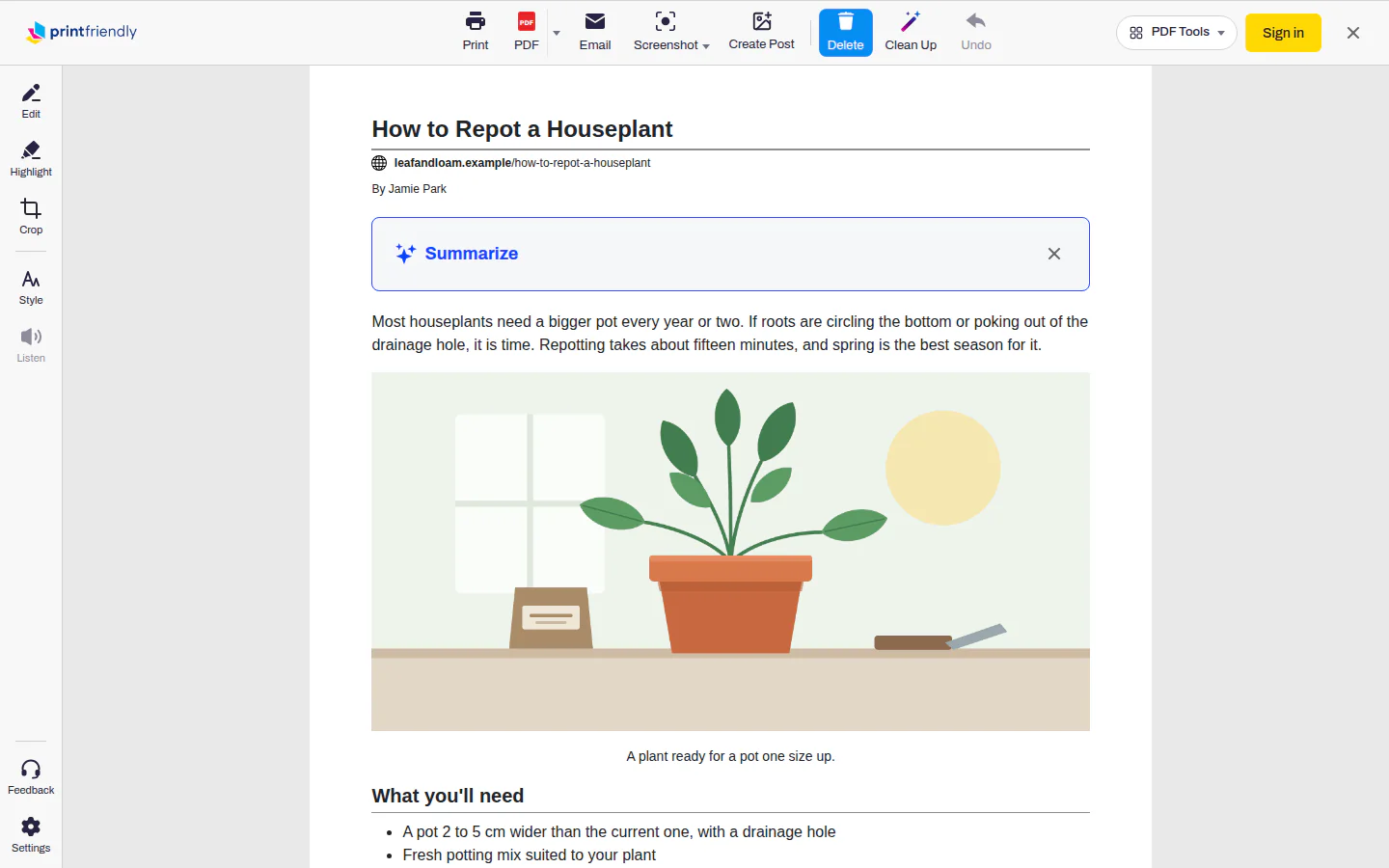
That's a different job, and printing a web page straight from the browser usually drags the ads, menus and comment section along with it. For an article, a recipe or a receipt, paste the page's address into the box on our home page and click Go. Or add the PrintFriendly extension for Chrome, click its button on the page and choose PrintFriendly View. Either way you get the page without the clutter, can click away anything else you don't want, and save it with the PDF button.
The built-in way on each device
Every device you own can already make a PDF. These are free and fine when the file opens cleanly in an app on that device.
- Windows: open the file, press Ctrl+P, choose Microsoft Print to PDF as the printer, click Print, then name the file and pick where it goes.
- Mac: press Cmd+P, click the PDF menu at the bottom of the print window, and choose Save as PDF.
- Chrome and Edge: press Ctrl+P (Cmd+P on a Mac) and set the destination or printer to Save as PDF, then click Save.
- iPhone and iPad: tap Share, then Print. On the print screen, tap the share button again and choose Save to Files.
- Android: open the menu, tap Print (sometimes under Share), pick Save as PDF from the printer list at the top, and tap the PDF button.
The online route is easier when you don't have an app that opens the file (an ebook, say), when the layout comes out shifted, or when you're on someone else's computer and can't change its settings. If you live in Office, our post on printing to PDF from Word, PowerPoint and Excel covers the in-app way.
Print to PDF not working?
This is where most people get stuck, and it's almost always Windows. Try these, roughly in order:
- Microsoft Print to PDF is missing. Search the Start menu for Turn Windows features on or off, tick Microsoft Print to PDF, and click OK. It shows up in your printer list again.
- It hangs or fails without saying why. The service that runs printing (the Print Spooler) has probably stalled. Restart it from the Services app, or just restart the computer.
- The PDF comes out blank or cut off. Look in the print window's settings for Fit to page or a scale option and try again. Some apps' print layouts simply don't fit a page well.
- Save as PDF isn't in the browser. Open the destination or printer list in the print window. In Chrome it can be tucked under See more.
If it still won't play along, skip the virtual printer. Drop the file on PDF Converter and download the PDF from there.
Frequently Asked Questions
Why is Print to PDF not working?
On Windows it's usually one of two things: Microsoft Print to PDF got switched off, or the print service behind it stalled. Turning it back on in Windows Features, or restarting the computer, fixes most cases. Converting the file online skips the virtual printer altogether.
Can I print to PDF without Adobe Acrobat?
Yes. Windows, Mac, Chrome, Edge, iPhone and Android can all print to PDF without any extra software, and PrintFriendly's PDF Converter runs in your browser with nothing to install.
Can I print to PDF on my phone?
Yes. On an iPhone, go through Share and Print, then share the preview to Files. On Android, pick Save as PDF as the printer in the print screen.
Is printing to PDF online free?
On PrintFriendly, yes. Converting a file costs nothing, and downloading the PDF takes a free account.